
Order documentation plays a critical role in running a professional WooCommerce store. As order volume increases, manually creating invoices, converting them into PDFs, and attaching them to emails becomes repetitive and time-consuming. Customers also expect quick access to invoices for accounting and record keeping, which adds more requests to manage.
By setting up automated PDF invoices in WooCommerce, you can generate invoice documents instantly based on order status, attach them to order emails, and allow customers to download or print them from their account page or WooCommerce order emails. In this guide, you’ll learn how to create, customize, and email PDF invoices in WooCommerce using the free WebToffee PDF Invoices plugin.
Let’s walk through the complete setup process.
How to Create, Customize, and Send PDF Invoices in WooCommerce?
Here is the complete process to auto-generate and send PDF invoices in WooCommerce using the WebToffee PDF Invoices plugin.
Step 1: Install & Activate the WooCommerce PDF Invoices Plugin
First, install the WebToffee PDF plugin from your WordPress dashboard to enable automated PDF invoice generation.
- Go to Plugins > Add New Plugin.
- Search for “WooCommerce PDF Invoices” by WebToffee.
- Once you have found the plugin, Install and Activate the plugin. The PDF invoice settings will appear under the Invoice/Packing menu in your WordPress sidebar.
Once you activate the plugin, a guided setup wizard walks you through the essential configuration steps. You’ll be prompted to enter your business details such as address and tax information, upload your logo, and configure basic invoice preferences. The wizard also allows you to enable automatic PDF invoice generation and attach invoices to WooCommerce order emails, so your billing process runs without additional effort.
If you prefer more control, you can configure everything manually from the plugin’s settings page. This gives you the flexibility to fine-tune invoice formats, email attachments, and other preferences based on your store’s specific requirements.
- Next, go to Invoice/Packing > General tab.
- Add your Name, Logo, Company Tax ID, and other business information
- Scroll down to enter your company address and location.
- Click on Update Settings to save the changes.
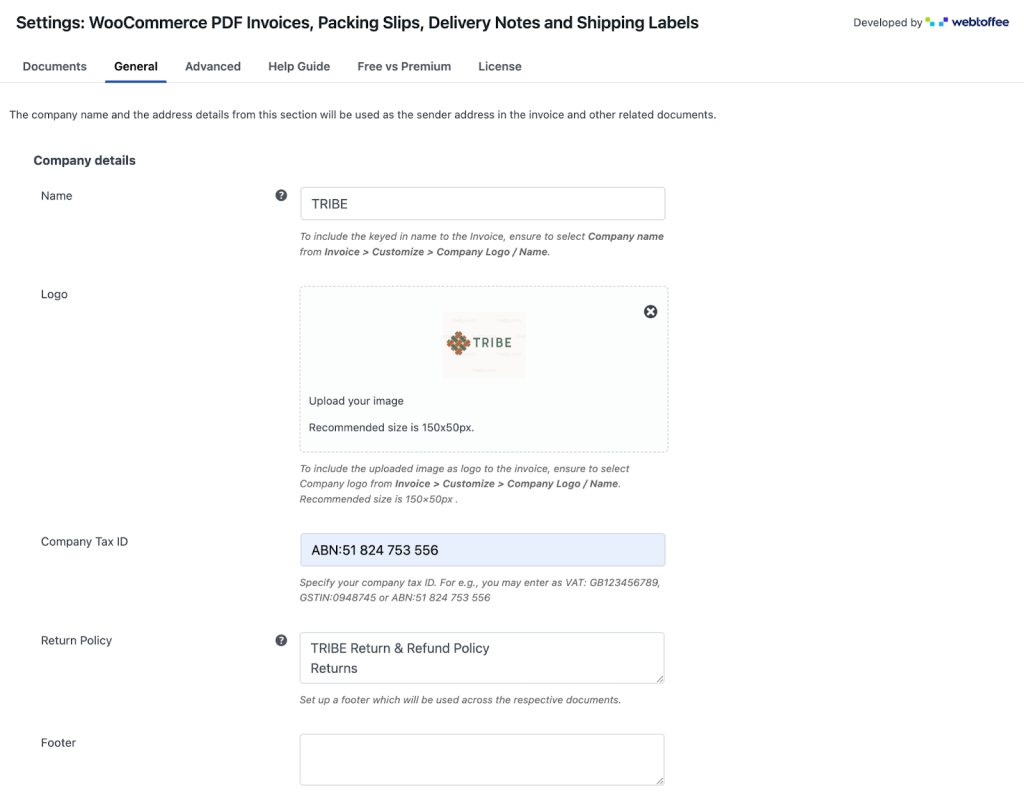
- You can configure advanced invoice settings like RTL support, PDF library, preview before printing, etc., under the Advanced tab.
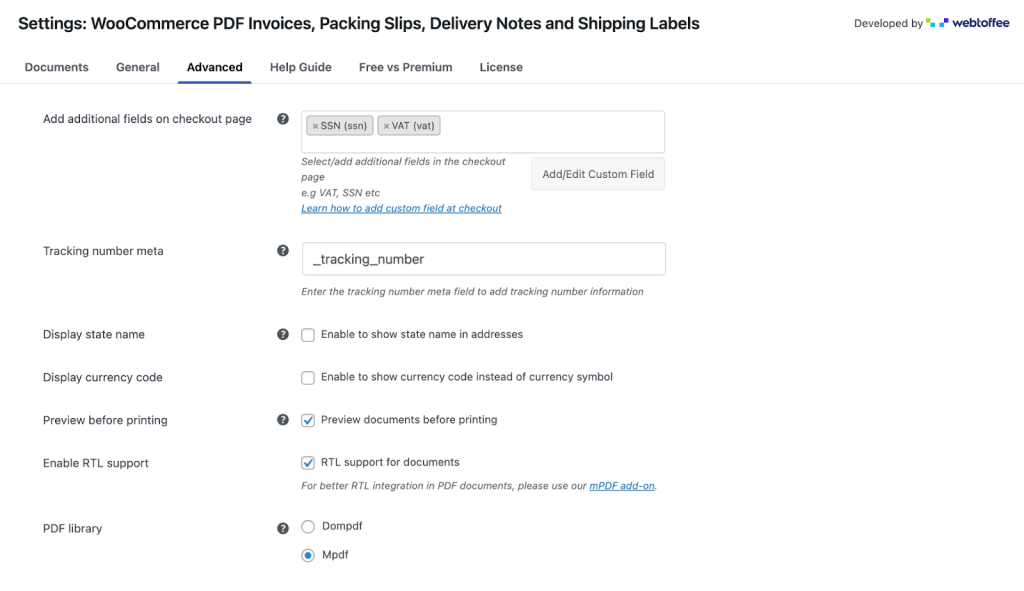
- Click Update Settings to save your changes.
Step 2: Activate WooCommerce PDF Invoice Generation
Next,
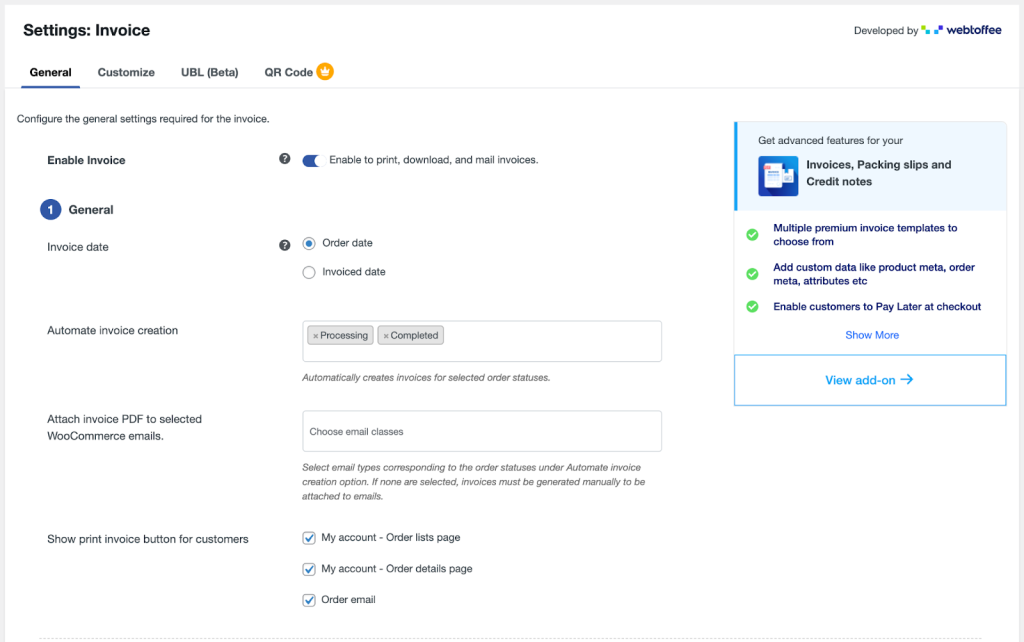
- Go to Invoice/Packing > Invoice to create and automate invoice PDF files.
- Switch on Enable Invoice to generate, print, and send WooCommerce invoices.
- Select the order statuses that will trigger automatic invoice PDF creation.
Step 3: Set Up Order Status Triggers to Email Invoice PDFs
After enabling the invoice generation, next configure when WooCommerce should generate and automatically attach the WooCommerce invoice PDF to customer order emails.
- In the Invoice/Packing > Invoice menu
- From the Attach invoice pdf to selected WooCommerce emails, choose the order status to automatically attach the PDF invoice.
- Enable the Show Print Invoice button for customers to let customers print invoices directly from the order email. They can also print invoices from the order listing and order details pages.
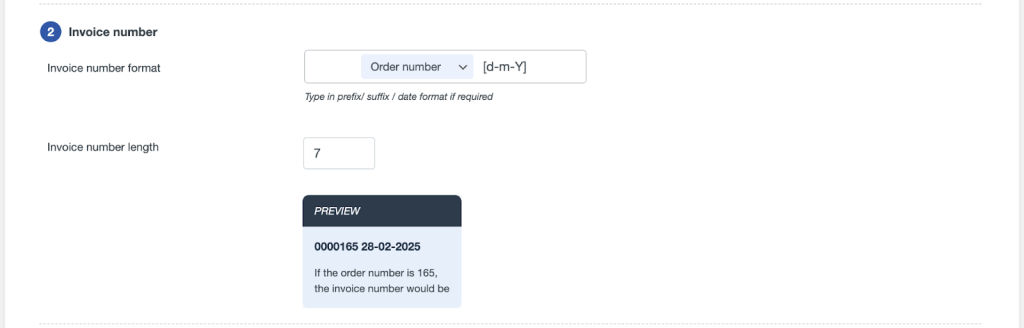
Step 4: Select Invoice Number Format
- You can set the default order number as the invoice number.
- Choose a desired length for the invoice number.
Step 5: Enable Advanced Invoice PDF Settings
With this PDF invoice for WooCommerce settings, you can also
- Add extra fields to invoices, such as order metadata, for more customization.
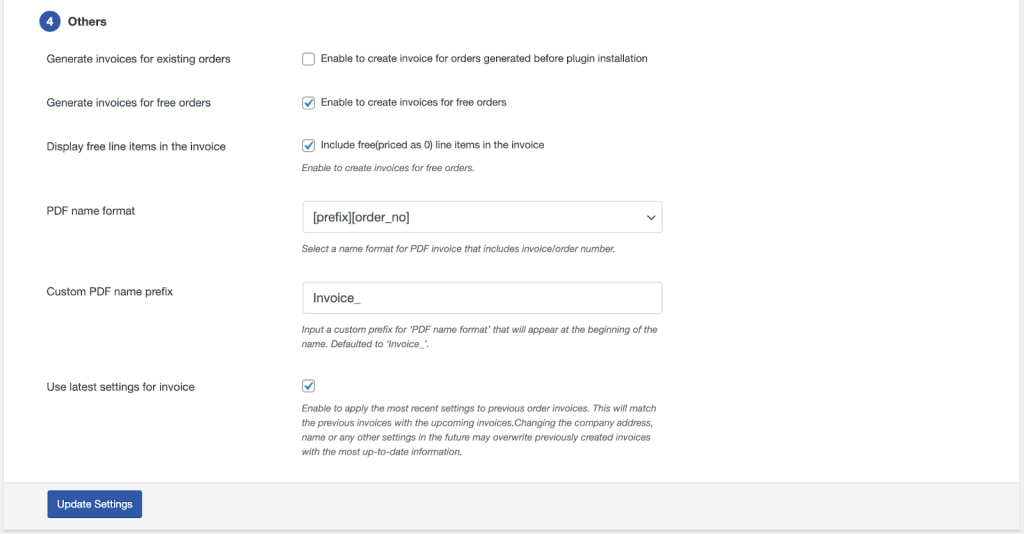
- Generate invoices for free orders if needed.
- Set a custom file name format for the PDF invoice.
- Click on Update Settings to save the changes.
Step 6: Customize WooCommerce PDF Invoices
How to customize WooCommerce PDF invoices,
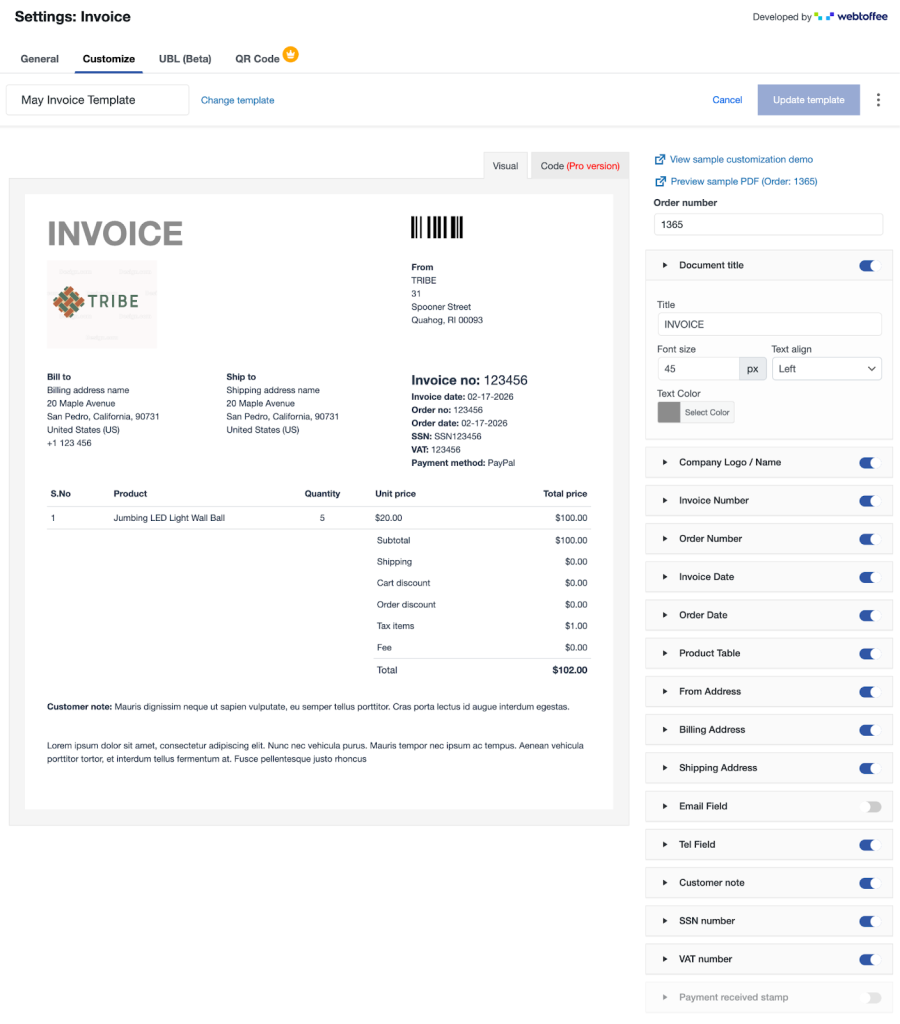
- Navigate to the Customize tab in the Invoice/Packing > Invoice menu to personalize invoice PDF elements.
- Add or edit fields in the invoice document.Customize the text, colors, and font sizes to match your branding.
That’s it! You have successfully automated and generated a WooCommerce PDF invoice using the free WebToffee invoice PDF plugin.
Upgrade Options for Advanced Invoice Management
If your store needs greater control over invoice documentation, you can upgrade to the premium PDF invoices & Packing Slips for WooCommerce. The Pro version allows you to generate credit notes along with invoices and packing slips, which makes managing refunds and partial returns more organized. It also provides multiple ready-to-use premium invoice templates.
The plugin supports bulk export of invoices, packing slips, and credit notes, which is particularly useful for accounting, audits, and high-order volumes. You can also insert a payment link directly into the invoice PDF, making it easier for customers to complete pending payments without additional follow-up.
For stores that require deeper design control, the Customizer for PDF Invoices add-on extends template editing capabilities. While the free version allows visual adjustments, the premium version enables code-level customization for more precise changes. This add-on includes a flexible block-based editor that helps you structure and refine WooCommerce invoice layouts according to your requirements.
Simplify WooCommerce Management with WebToffee Plugins
A well-managed WooCommerce store runs on more than products and payments. Behind every smooth checkout, organized order, and compliant storefront is a set of tools that quietly handle the heavy lifting. From privacy regulations to coupon campaigns and order processing, the right plugins can shape how efficiently your store operates day to day.
Here, we’ll look at a set of essential WebToffee plugins that help streamline store management, simplify setup, and introduce practical systems that support long-term growth, along with the PDF Invoice for WooCommerce plugin.
GDPR Cookie Consent Plugin for WooCommerce
The WordPress GDPR Cookie Consent plugin helps you handle privacy regulations with clarity and control. It allows you to display a fully customizable cookie banner that collects valid user consent while keeping your store aligned with global data protection laws.
The plugin creates a compliant cookie consent banner with clear accept and reject options. It can automatically block third-party scripts until visitors provide consent, preventing unauthorized cookies from loading on your site. The plugin also supports the latest IAB TCF v2.3 framework and integrates with multiple consent modes, including Google Consent Mode, helping you align advertising and analytics tools with user preferences. This makes it easier to manage compliance without disrupting your tracking setup. These features give store owners a structured and reliable way to manage cookie compliance directly from the WordPress dashboard.
Shipping Labels, Delivery Notes, and Dispatch Label Plugin
The WooCommerce Shipping Labels simplifies order fulfillment by letting you generate and print essential shipping documents directly from your store. It brings label creation and order documentation into one organized workflow.
With this plugin, you can create and print shipping labels straight from the WooCommerce dashboard. It allows you to customize label templates, so important order and shipping details are displayed clearly. You can also generate dispatch labels and delivery notes alongside shipping labels, keeping all required documents connected to each order. For stores handling a high volume of sales, the bulk-print option helps process multiple orders at once, saving time during packing and dispatch.
By centralizing label generation and order documents within WooCommerce, it reduces manual effort and helps store owners maintain a consistent shipping process as their order volume grows.
Smart Coupons for WooCommerce
Smart Coupons for WooCommerce expands the default coupon system and gives store owners control over how discounts are created and applied. It allows you to run targeted promotions such as BOGO deals, store credits, and advanced coupon campaigns easily in WooCommerce.
You can create coupons that apply automatically at checkout, thereby removing the need for customers to manually enter codes. This improves the buying experience and helps reduce missed redemptions. You can also set up buy-one-get-one offers with specific conditions, allowing you to define which products qualify and how the discount should be triggered.
Advanced usage restrictions give you the flexibility to control eligibility based on cart value, product combinations, or user roles. With its extended coupon logic and controls, Smart Coupons becomes a reliable promotional tool for WooCommerce stores that want more than basic discount rules.
Product Import Export Plugin for WooCommerce
The WooCommerce Product Import Export plugin helps you manage large product catalogs effortlessly. It allows you to import and export product data in bulk, making store setup, migration, and ongoing updates far more manageable.
With support for CSV, XML, Excel, and TSV files, the plugin gives you flexibility in how you handle product data. You can import large batches of products in one go, including attributes, categories, images, and other essential details. It also supports all WooCommerce product types, such as simple, variable, grouped, affiliate, custom, and subscription products, so you are not limited when scaling your catalog. When exporting, advanced filtering options let you select products by category, stock status, tags, or other criteria, which is useful when working with suppliers or external systems.
For store owners handling frequent inventory changes or large product volumes, this plugin creates a structured and reliable way to manage product data inside WooCommerce.
Sequential Order Numbers for WooCommerce
The WooCommerce Sequential Order Numbers Plugin brings structure to your order management by replacing random order IDs with sequential numbers. It helps you maintain a more organized and professional system for tracking sales.
The plugin automatically generates sequential order numbers for every new order placed in your store. You can define a custom starting number, set specific increments, and add prefixes or suffixes to match your internal accounting or branding format.
By introducing predictable order numbering, the plugin simplifies bookkeeping, improves traceability, and keeps daily operations easier to manage as your store grows.
Wrapping Up
Automating PDF invoices in WooCommerce improves efficiency without complicating your workflow. Once configured, invoices are generated, formatted, and delivered automatically based on your chosen order status.
With the WebToffee PDF Invoices plugin, you gain full control over invoice creation, numbering, customization, and email delivery. As your store grows, this automation keeps documentation structured and reduces administrative effort.
Follow the steps outlined above, and you’ll have a dependable invoicing system running quietly in the background while you focus on growing your WooCommerce business in the eCommerce niche.