

As your blog grows, you add more tracking codes: Google Analytics, conversion pixels, heatmaps, ad platforms, and event tracking. Pasting each one into your theme gets messy fast. Google Tag Manager (GTM) is a free tool that lets you add and manage all these tags from one dashboard, without touching your site’s code again.
Do You Even Need Google Tag Manager?
If you only need Google Analytics 4, you may not need GTM; add GA4 directly with Site Kit or a plugin. GTM is worth it when you use several tracking tools or want to track events such as button clicks, form submissions, or affiliate link clicks without code.
Step 1: Create a GTM Account and Container
- Go to tagmanager.google.com and sign in with your Google account.
- Click Create Account, enter an account name (your business) and country.
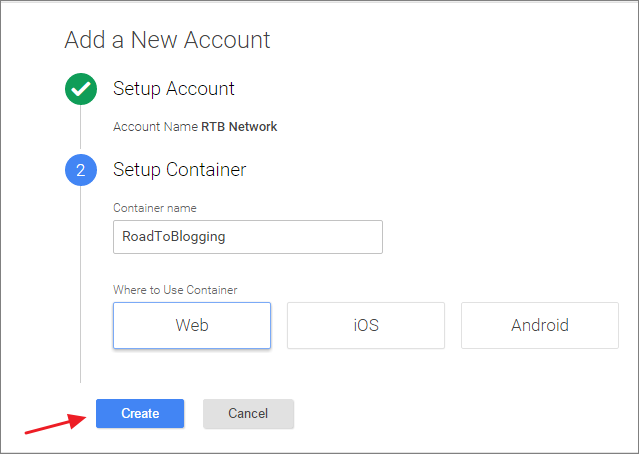
- Enter a container name (your website) and choose Web as the platform.
- Accept the terms. GTM shows two code snippets: one for the
<head>and one right after the opening<body>tag. Note your container ID, which looks like GTM-XXXXXXX.
Step 2: Add GTM to WordPress
Choose one method:
Option A: GTM4WP (Recommended)
Install GTM4WP (700,000+ installs). Go to Settings > Google Tag Manager, paste your container ID, and save. It places both snippets correctly and can also push useful WordPress data (post type, category, author) to GTM.
Option B: Site Kit by Google
If you use Site Kit, connect the Tag Manager module and select your container. Site Kit handles the code for you.
Option C: WPCode
Install WPCode (formerly Insert Headers and Footers), go to Code Snippets > Header & Footer, paste the head snippet into Header and the body snippet into Body, and save.
Avoid editing your theme’s header.php directly; your changes disappear when the theme updates.
Step 3: Add Your First Tag (Google Analytics 4)
- In GTM, go to Tags > New.
- Click Tag Configuration and choose Google Tag.
- Enter your GA4 Measurement ID (it starts with G-).
- Under Triggering, choose Initialization – All Pages (or All Pages).
- Name the tag and save.
If GA4 is already installed by another plugin, remove that code first, or you will count every visit twice.
Step 4: Preview and Publish
- Click Preview in GTM, enter your site URL, and connect. Tag Assistant opens your site and shows which tags fired.
- Confirm your Google Tag fired on page load.
- Back in GTM, click Submit, add a version name, and click Publish.
Nothing goes live until you publish, which makes GTM safe to experiment with.
Useful Tags to Add Next
- GA4 events for outbound or affiliate link clicks.
- Form submission and button click tracking.
- Microsoft Clarity for heatmaps.
- Ad platform pixels (Meta, LinkedIn, Google Ads) if you run ads, with consent where required.
Frequently Asked Questions
Does Google Tag Manager slow down my site?
The GTM container itself is light, but every tag you add loads more code. Keep only the tags you use.
Is Google Tag Manager free?
Yes. The standard version is free.
Do I still need a cookie consent banner?
If you have visitors from the EU or UK and use tracking tags, yes. GTM supports Consent Mode to respect visitors’ choices.


Leave a Reply