

Moving a WordPress site to a new host sounds risky, but done in the right order it causes no downtime at all: you copy the site to HostGator while the old host keeps serving visitors, check the copy privately, and only then point your domain at the new server. This guide walks through that order, with two ways to do the copying: HostGator’s migration service, or a free plugin you run yourself.
Updated October 2026. When this guide was first written, HostGator migrated shared hosting sites for free. That has changed: free migration is now only for VPS and Dedicated plans on a 12-month term, and shared hosting customers pay a one-time $149.99 for one site. The free plugin method below works just as well and is what most people should use.
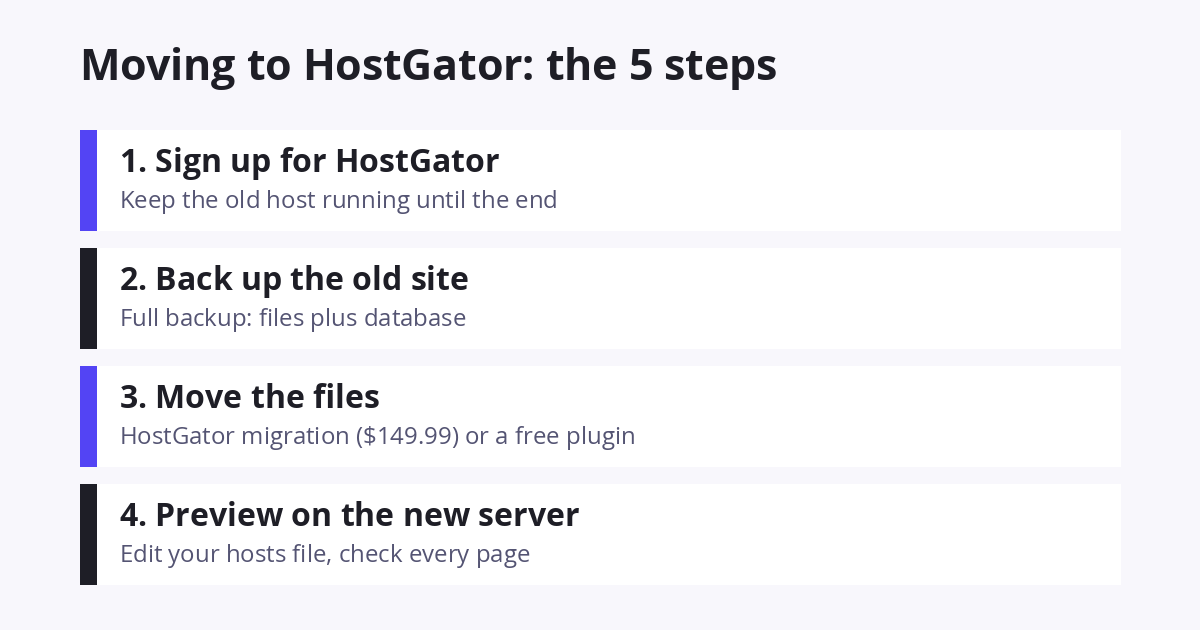
Before You Start
- Do not cancel your old hosting yet. It needs to keep running until the move is finished and DNS has switched.
- Know where your domain is registered. You will change its nameservers (or a DNS record if you use Cloudflare) at the end.
- Pick a quiet time. Anything published on the old site after you copy it will not carry over, so plan the move for a day with no new posts or comments.
Step 1: Sign Up for HostGator
Go to HostGator and choose a shared plan. Hatchling hosts one site; Baby hosts unlimited sites; Business adds a dedicated IP and more resources. For a single blog, Hatchling is enough. Introductory prices change often (a few dollars a month on a 36-month term) and renew at the regular rate, which is $10.99 per month and up, so compare the renewal price before choosing a term. Our HostGator plans comparison goes into the differences.
At checkout, enter the domain you already own (choose “I already own this domain”), uncheck the add-ons you do not need, and pay. You will get a welcome email with your cPanel login and your HostGator nameservers (two addresses ending in hostgator.com). Keep that email.
Step 2: Back Up Your Old Site
Take a full backup (files and database) before touching anything, even though the old site stays untouched during a plugin migration. UpdraftPlus and WPvivid both do a full backup to Google Drive or Dropbox for free; see our guide to backing up WordPress to Dropbox. If anything goes wrong you can restore from this.
Step 3: Copy the Site to HostGator
You have two options.
Option A: HostGator’s migration service ($149.99)
Log in to the HostGator Customer Portal, click Marketplace in the left menu, find the Site Migration card, and click Claim Offer, then Buy Now. A migration admin emails you for your old host’s cPanel or FTP login, copies the site as-is, and tells you when it is ready. It is free only if you bought a VPS or Dedicated plan on a 12-month term and request it within 30 days; for shared hosting it is a one-time $149.99 per site. Worth it if the site is large or you do not want to touch anything yourself.
Option B: Free plugin (recommended)
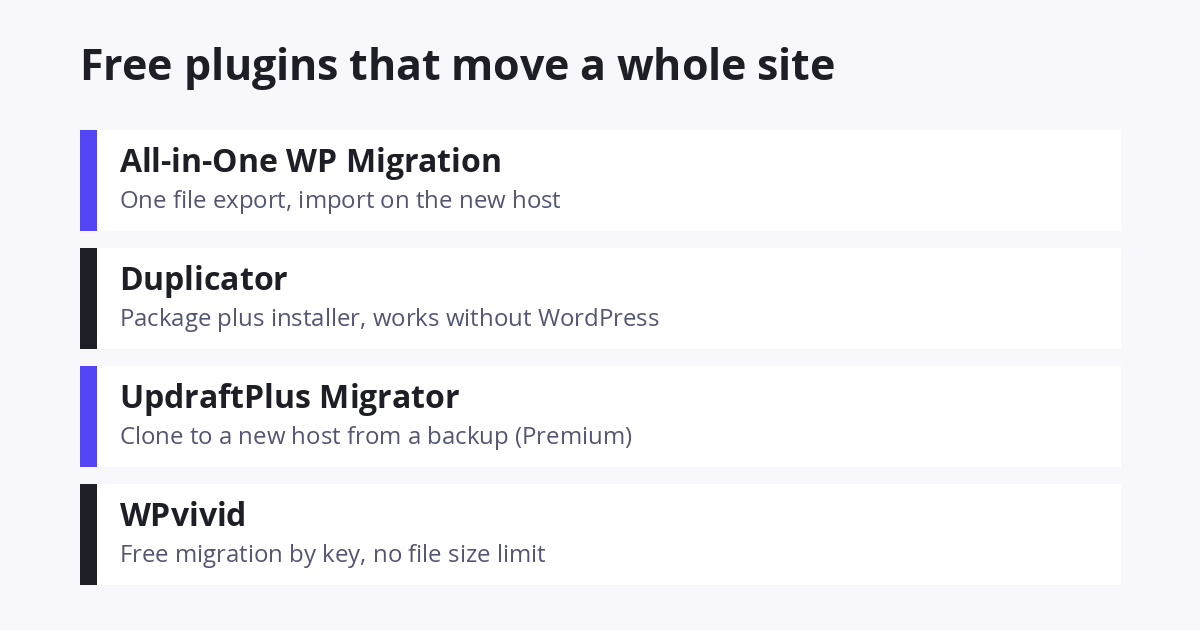
A migration plugin packages the whole site, you install WordPress on HostGator, and the plugin unpacks it there. All-in-One WP Migration is the simplest; Duplicator is best for large sites. Here is the All-in-One WP Migration route:
- Install WordPress on HostGator. In cPanel, open Softaculous (under Software), choose WordPress, and install it on your domain. Our HostGator WordPress install guide has screenshots. Use any admin password; it will be replaced by your old one after import.
- Export the old site. On the old site, install All-in-One WP Migration, go to All-in-One WP Migration > Export, choose File, and download the .wpress file.
- Import on HostGator. Log in to the new WordPress install, add the same plugin, go to Import, and upload the file. If the upload limit is lower than your file, use Duplicator instead or buy the plugin’s Unlimited extension ($69). HostGator’s shared plans usually allow 512 MB, which covers most blogs.
- Save permalinks. After the import finishes, log in with your old site’s admin credentials and go to Settings > Permalinks, then click Save twice. This rebuilds the URL rules on the new server.
Step 4: Preview the Site Without Changing DNS
Your domain still points at the old host, so to see the copy on HostGator you tell your own computer to use the new server’s IP for your domain. Find the IP in your HostGator welcome email or in cPanel (right column, Shared IP Address). Then add one line to your computer’s hosts file:
192.0.2.10 yourdomain.com www.yourdomain.comOn Windows the file is C:\Windows\System32\drivers\etc\hosts (open Notepad as administrator). On Mac it is /etc/hosts (open Terminal and run sudo nano /etc/hosts). Save, clear your browser cache, and open your site. You are now looking at the HostGator copy while everyone else still sees the old host. Click through posts, images, forms, and the admin area. If something is wrong, fix it on HostGator or re-import; nobody else can see it yet.
Remove the hosts file line when you are done, or you will keep seeing the new server even if DNS has not switched.
Step 5: Point Your Domain at HostGator
When the preview looks right, change your domain’s nameservers to the two HostGator nameservers from your welcome email. At Namecheap: Domain List, Manage, then under Nameservers choose Custom DNS and enter both.

The change spreads across the internet over a few hours (up to 48 at most). During that time some visitors reach the old server and some the new one, which is why both copies must stay online and why you should not publish anything until it settles. You can watch progress at whatsmydns.net.
If your domain runs through Cloudflare, do not change nameservers. Log in to Cloudflare, open DNS, and edit the A record for your domain to the new HostGator IP. That takes effect in minutes.

After the Move
- Install an SSL certificate on HostGator (cPanel > SSL/TLS Status, or let HostGator’s free SSL activate) and make sure Settings > General shows https URLs.
- Check email: if your mailboxes were on the old host, set them up on HostGator or move the domain’s MX records before you cancel.
- Keep the old hosting for at least a week, then cancel it.
- Run an uptime monitor on the new site for the first month; our free uptime monitoring tools post lists several.
Frequently Asked Questions
Does HostGator still migrate websites for free?
Only for VPS and Dedicated plans bought on a 12-month term, requested within 30 days of signup. Shared hosting migrations cost a one-time $149.99 for one site through the Customer Portal Marketplace.
Will my site go down during the move?
Not if you follow the order above. The old host keeps serving the site until DNS switches, and the HostGator copy is already live by then.
How long does DNS propagation take?
Usually 1 to 4 hours, up to 48 in rare cases. Cloudflare A record changes are near-instant.
What if my site is too big for the free migration plugin?
Use Duplicator, which splits the package into parts, or WPvivid, which has no size limit on its free migration, or pay the $69 for All-in-One WP Migration Unlimited.
Do I need to transfer my domain to HostGator too?
No. Hosting and domain registration are separate. You can keep the domain at Namecheap, GoDaddy, or wherever it is and just change the nameservers.
Can I move from HostGator to another host the same way?
Yes, the steps are identical in reverse. See our guide to moving from HostGator to Bluehost.
Leave a Reply