
WooCommerce stores all the order information needed to create invoices and other documents, but many store owners still create them manually.
For a small number of orders, this process may be manageable. As order volume grows, manually preparing invoices, packing slips, and other documents takes more time and creates more opportunities for mistakes.
An automated document workflow generates these files from WooCommerce order data without requiring store owners to create each document individually.
In this guide, you will learn how WooCommerce invoice automation works, which order documents you can automate, and how to set up an automated document generation workflow.
Does WooCommerce Automatically Generate Invoices and Order Documents?
WooCommerce does not automatically create a complete set of customized order documents, such as PDF invoices, packing slips, and delivery notes, for your store.
WooCommerce records customer orders, payments, products, and shipping details. However, turning that order data into professional documents usually requires an additional invoice or document management solution.
For example, a store may need to create a PDF invoice when an order is placed, attach it to an email, provide a customer download option, or create a packing slip for fulfillment. These workflows need dedicated document automation features.
By adding a WooCommerce invoice automation solution, store owners can generate required documents automatically from existing order data instead of creating them manually for every purchase.
What Are WooCommerce Order Documents?
WooCommerce order documents are files generated from order information to support payment records, customer communication, and order fulfillment.
These documents use WooCommerce order data, such as customer details, purchased products, payment information, and shipping details. Different stores may need different documents depending on their workflow.
Common WooCommerce order documents include:
- Invoice: An invoice provides a detailed record of a customer purchase, including products, prices, taxes, and payment details.
- Packing Slip: A packing slip helps fulfillment teams prepare and pack orders. It usually includes product details and quantities without showing payment information.
- Receipt: A receipt confirms that a customer completed a purchase. It is commonly used as proof of payment.
- Delivery Note: A delivery note provides shipment-related information and helps customers or fulfillment teams verify delivered items.
- Credit Note: A credit note records adjustments such as refunds or returned products.
Automating these documents helps WooCommerce store owners generate the right files from order data without creating each document manually.
Why Automate WooCommerce Order Documents?
Automating WooCommerce order documents helps store owners reduce manual tasks, speed up order processing, and maintain consistent documentation across every order.
Reduce Repetitive Administrative Work
Creating invoices and other order documents manually for every purchase takes unnecessary time.
An automated workflow generates documents directly from WooCommerce order data, so store owners do not need to repeat the same steps for each order.
Improve Order Fulfillment
Fulfillment teams often need documents such as packing slips or delivery notes to prepare and ship orders correctly. Automated document generation ensures the required files are available as soon as an order reaches the relevant stage.
Provide Faster Customer Access
Customers often need invoices or receipts for their records. Automation allows stores to provide these documents through emails or customer account areas without requiring manual requests from the store team.
Maintain Consistent Documentation
Manual document creation can lead to inconsistent layouts, missing details, or formatting differences between orders. Automated templates ensure every invoice and document follows the same structure with accurate order information.
How to Automatically Generate WooCommerce Invoices and Documents
You can automate WooCommerce invoices and order documents by using a document automation plugin that connects with your store orders.
Several plugins provide solutions for this workflow in WooCommerce:
- WP Overnight
- WowInvoice
- WebToffee PDF invoices
- WPdesh flexible invoices, etc
The exact setup process may vary depending on the plugin you choose. Still, most solutions follow a similar workflow: installing the plugin, configuring generation rules, customizing templates, and setting up document delivery.
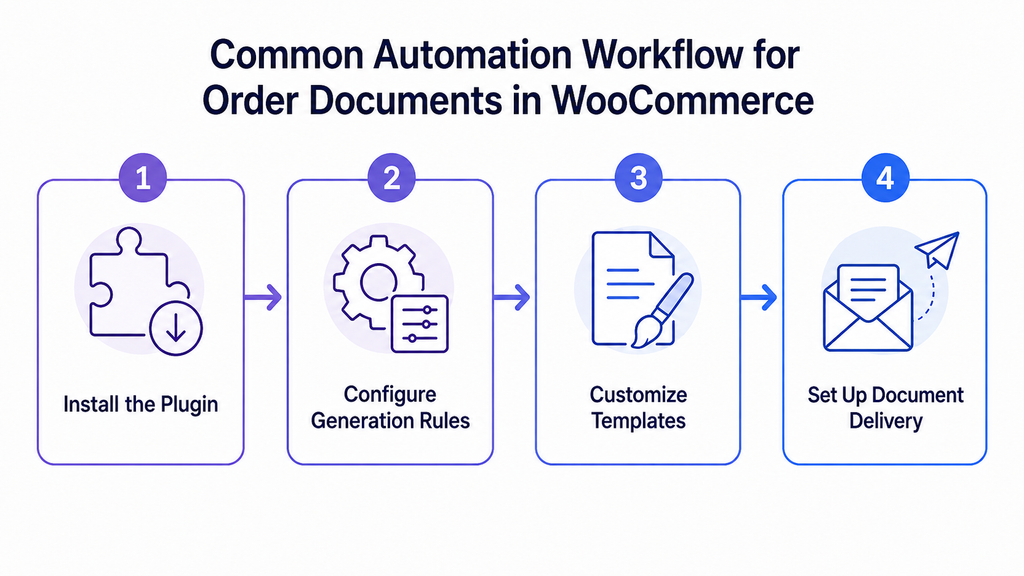
For demonstration, we will use the WowInvoice plugin. It is an all-in-one PDF invoices & packing slips plugin for WooCommerce. It can generate and automate order fulfillment documents from one plugin.
Let’s see how you can automatically generate invoices and other order fulfilment documents with WowInvoice.
Step 1: Select the Document Types You Want to Generate
The first step is choosing which WooCommerce documents your store needs to automate. Different businesses require different documents depending on their workflow.
With WowInvoice, you can manage and configure documents such as invoices, packing slips, delivery notes, shipping labels, credit notes, and picklists.
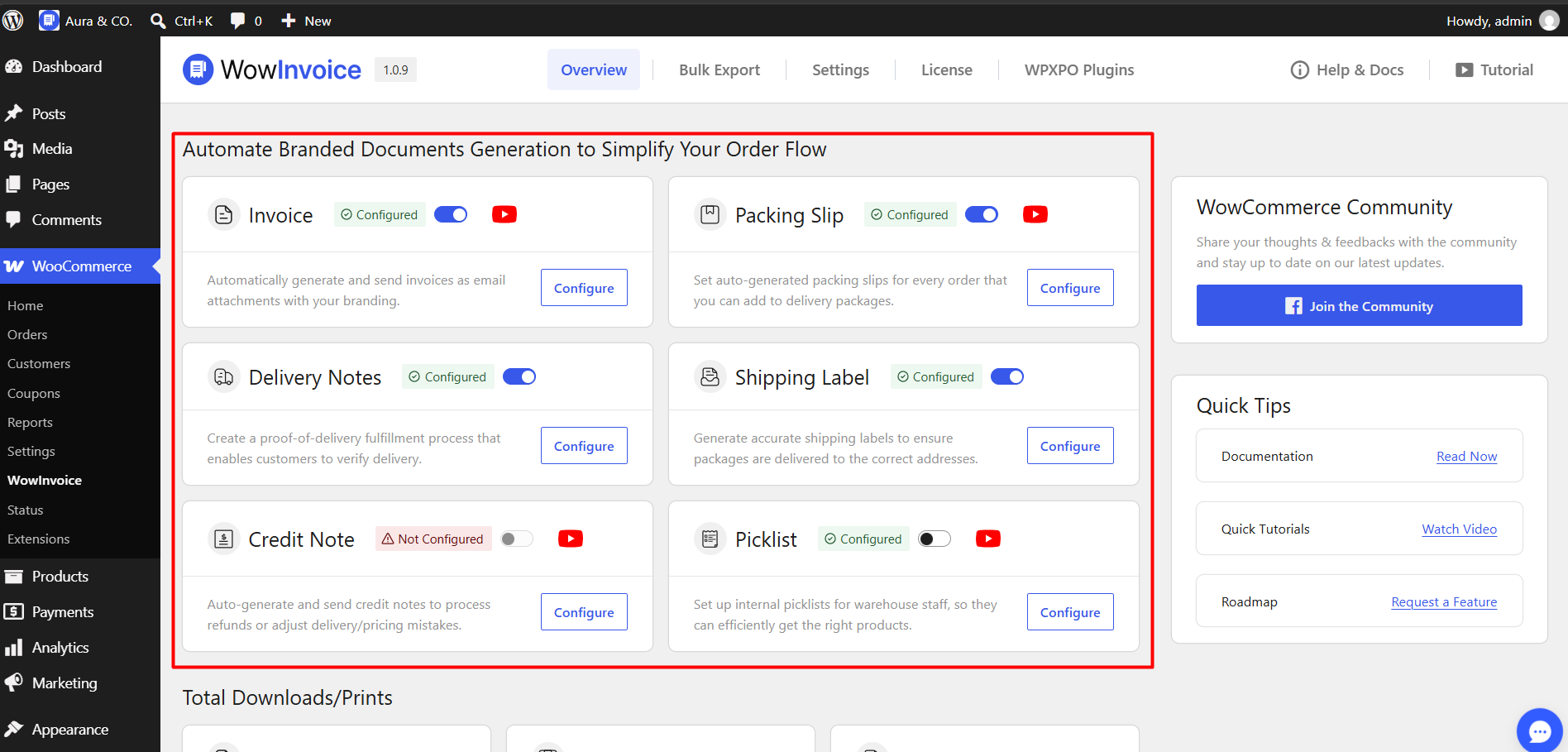
After selecting the required document types, you can configure each document separately, including when it should be generated, what information it should display, and how customers or store teams can access it.
Step 2: Configure When Documents Should Be Generated
After selecting the required document types, the next step is configuring the selected documents.
The configuration workflow can vary based on different document types. However, every document in WowInvoice can be generated automatically based on order statuses.
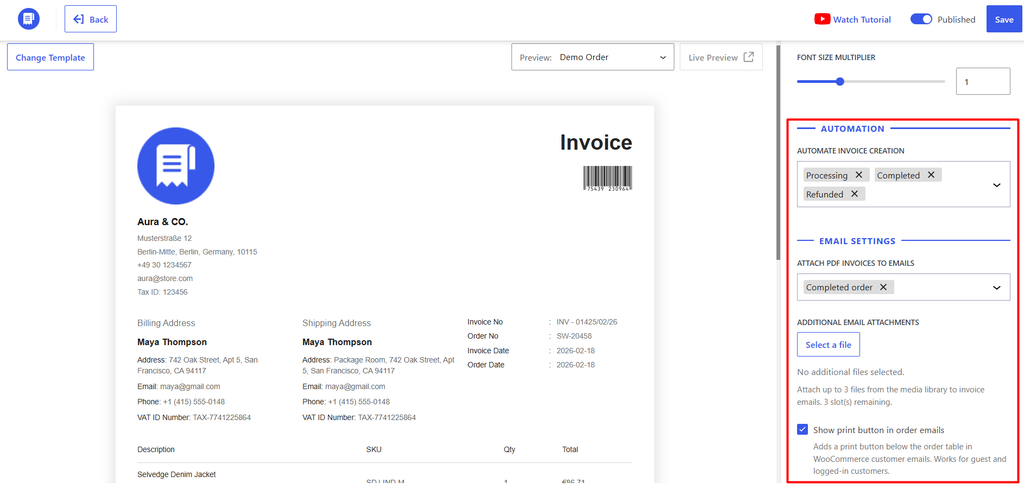
For example:
- Generate an invoice after a successful order payment.
- Create a packing slip when an order is ready for fulfillment.
- Prepare other documents based on your store’s operational needs.
With WowInvoice, you can also automate the email notification in the same way.
Setting the right configuration rules helps ensure your customers and fulfillment teams receive the required documents at the right time without manual intervention.
Step 3: Customize Document Templates
After setting up document configuration rules, customize your templates to match your store requirements and ensure every generated document includes the necessary information.
A professional document should include important details such as:
- Store logo and business information
- Customer details
- Product and order information
- Payment and tax details
- Custom fields required for your workflow
With WowInvoice, you can choose a premade template from multiple options and customize the label for each field in the document.
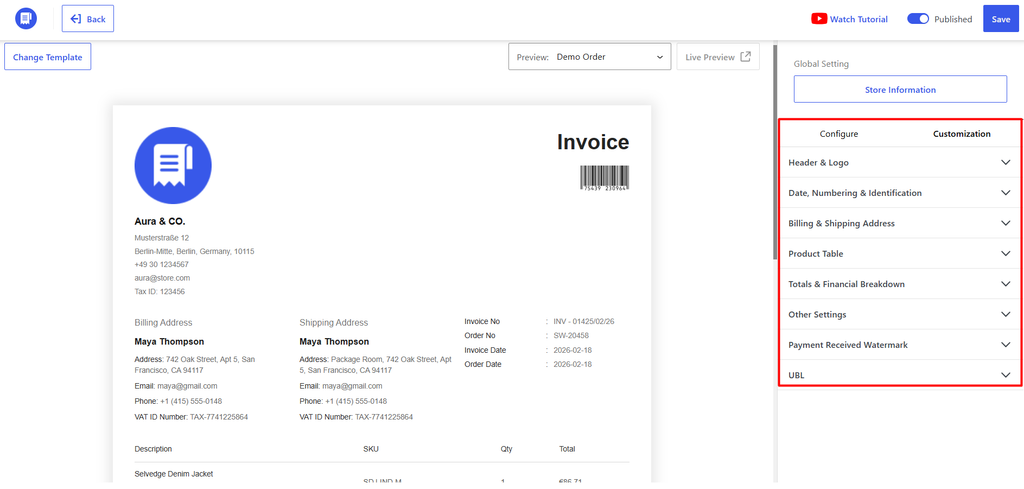
For example, a retail store may need a simple invoice with customer and payment details, while a B2B store may require additional business information or tax-related fields.
Custom templates ensure that every generated document looks consistent and contains the information customers, accounting teams, and fulfillment staff need.
With these three steps, you can fully automate your WooCommerce order documents, including invoices and packing slips.
Why Choose WowInvoice for WooCommerce Document Automation?
WowInvoice helps WooCommerce store owners automate invoice and order document generation without creating each document manually for every order.
The plugin connects with WooCommerce order data to generate professional documents based on your store workflow. Instead of managing invoices, packing slips, and other documents separately, you can handle them through a centralized document management system.
With WowInvoice, you can:
- Generate multiple WooCommerce documents: Create different types of documents, including invoices, packing slips, delivery notes, credit notes, and other order-related documents based on your business needs.
- Customize documents for your store: Adjust document templates with your branding, store information, and required order details to maintain a consistent appearance across all documents.
- Automate repetitive document tasks: Generate documents from WooCommerce orders automatically and reduce the manual work involved in preparing customer and fulfillment documents.
- Manage different document requirements from one WooCommerce workflow : Whether you manage a small ecommerce store or a larger operation with frequent orders, automated document generation helps keep your order management process organized.
By combining document generation, customization, and automation, WowInvoice helps WooCommerce stores create a more efficient workflow for managing invoices and order documents.
FAQ
Can WooCommerce automatically create invoices?
WooCommerce does not provide a complete invoice automation workflow by default. It stores order information, but store owners typically need an additional invoice or document automation solution to generate customized invoices automatically from order data.
Does WooCommerce send invoices automatically?
WooCommerce can send order-related emails, but automated invoice generation and delivery usually require additional functionality. Plugins like WowInvoice can generate documents from order data and make them available through emails, downloads, or store management workflows.
How do I automate invoices in WooCommerce?
You can automate WooCommerce invoices by using an invoice automation plugin like WowInvoice. The general process involves selecting the required document types, configuring when documents should be generated, customizing templates, and setting up how customers or store teams access the generated files.
What documents can WooCommerce invoice plugins generate?
WooCommerce invoice plugins can generate different types of order documents depending on the solution. Common documents include invoices, packing slips, receipts, delivery notes, and credit notes.
Can I customize WooCommerce invoice templates?
Yes, invoice plugins typically allow store owners to customize invoice templates. Common customization options include adding a logo, business details, customer information, product details, tax information, and other required fields.